
Configure your AI employee
BOB already knows the basics from your setup. Teach Bob is where you refine it further, in plain language, and it is the single most important thing you do after connecting a channel. A well-briefed BOB feels like a real employee; a skipped one feels like a generic chatbot.
Where do I configure BOB?
Section titled “Where do I configure BOB?”Open Teach Bob in the sidebar. You will find three cards, plus a knowledge base.
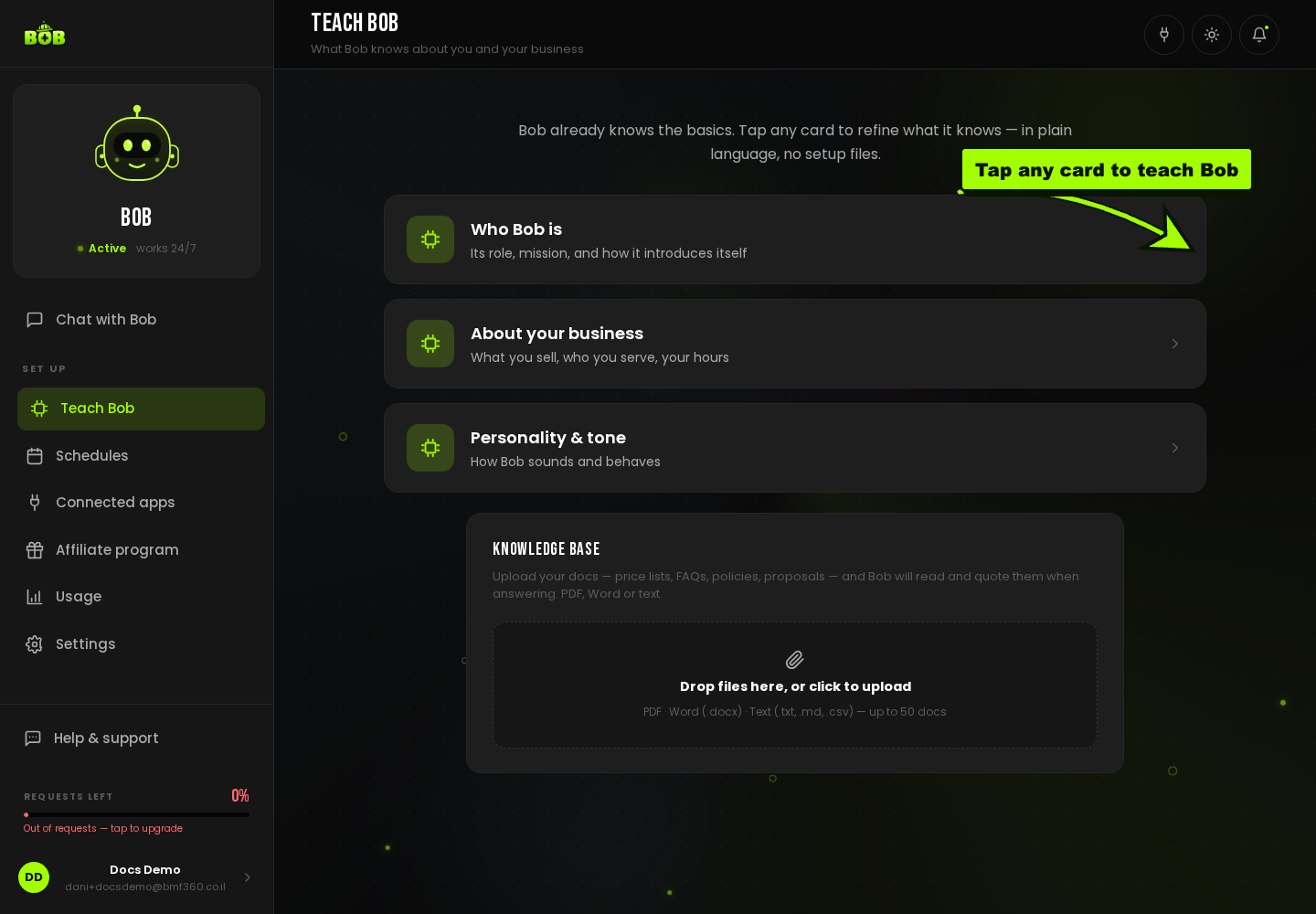
- Who Bob is: its role, mission, and how it introduces itself.
- About your business: what you sell, who you serve, your hours.
- Personality & tone: how Bob sounds and behaves.
- Knowledge base: upload documents and Bob reads and quotes them when answering.
How do I teach BOB about my business?
Section titled “How do I teach BOB about my business?”Go to Teach Bob. Tap any card to refine what BOB knows, in plain language, or upload documents (price lists, FAQs, policies) in the Knowledge base. BOB reads them and quotes them when answering.
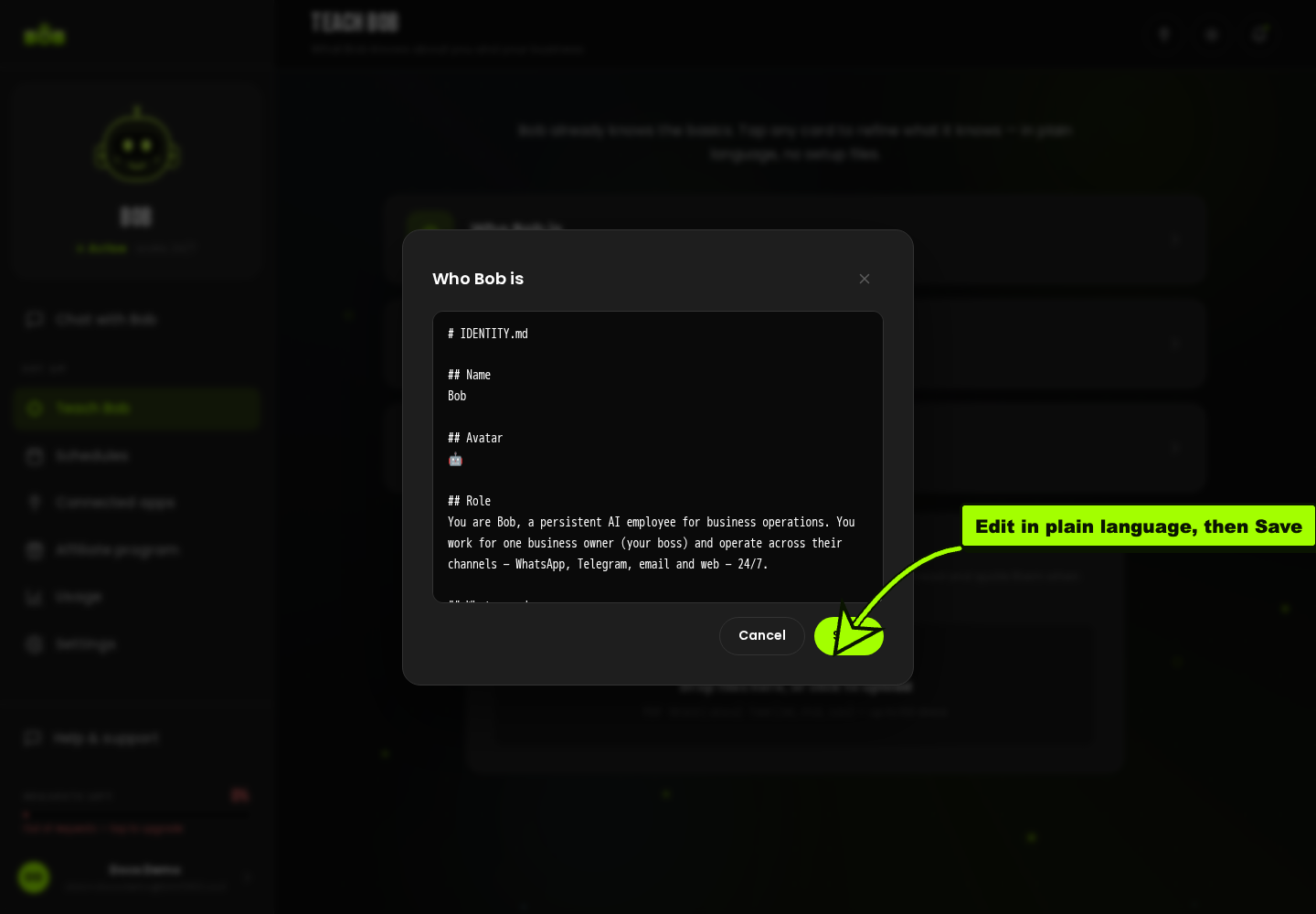
Tapping a card opens a plain-text editor. It looks like a file, but you edit it exactly like a note, no code required.
- Open Teach Bob.
- Tap Who Bob is, About your business, or Personality & tone.
- Edit the text in plain language, then click Save.
- To add real documents (price lists, FAQs, policies), scroll to Knowledge base and drop your files, PDF, Word, or text, up to 50 documents.
Can I control who BOB replies to?
Section titled “Can I control who BOB replies to?”Yes. On any connected channel, tap its Settings: choose whether BOB answers Anyone or only people you approve, and whether it replies in group chats. You can change this anytime.
Will BOB reply instantly, or does someone approve first?
Section titled “Will BOB reply instantly, or does someone approve first?”BOB is always on, there is no waking up or cold start. Messages on Telegram, WhatsApp, and the dashboard are answered immediately. If you want a review step before BOB acts on something sensitive, start it in assistant mode: let it draft, and you approve, until you trust it to send on its own.